learnVoice & sound
How to add captions to an AI video, and what they cost per minute
Burned-in captions for AI clips: leave room in the frame, caption voiced lines and narration, keep sync through a re-cut, and pay 8 credits a minute or nothing.
by reeldouble · November 1, 2026 · 6 min read
The captions problem is a framing problem
Most guides on captioning AI video are written by caption tools. Their advice is fine as far as it goes: transcribe, check the transcript, style the text, burn it in for Reels and TikTok, export an SRT file for YouTube. What they skip is the part that only exists because the video was generated: you decide where the empty space is before the clip exists.
With filmed footage you caption whatever the camera caught. With a generated clip you write the shot. If the prompt puts the character's chin at the bottom of a 9:16 frame, your captions will sit on their mouth, and a re-render to fix it costs the whole clip again. So the first caption decision comes before the render, not after it.
This page is our workflow: how we frame for captions, which clips to caption and how, why our cues stay in sync when we re-cut, and what it costs.
Burned in or closed: pick per platform
Two kinds of caption:
- Burned in (open captions). Drawn into the picture. Everyone sees them, on every device, whatever the app does. This is what short vertical video uses.
- Closed captions. A separate text file, usually SRT or WebVTT, that the viewer can turn on or off. YouTube and Vimeo handle these well.
For Reels, TikTok and Shorts we burn captions in. Platform auto-captions exist, but you do not control the font, the timing or the spelling of a character's name, and a lot of people scroll with the sound off. The one trap: if you burn captions in and the viewer also has the platform's auto-captions switched on, they see two sets of text. Our fix is to keep burned-in captions in the lower middle of the frame and to leave platform captions off on our own uploads.
Frame the shot for the text before you render
This is the step no caption tool can do for you. When we write a shot that will carry captions, the prompt keeps the bottom third of the vertical frame quiet:
- Put the subject high. "Medium close-up, character framed in the upper two thirds" or "head and shoulders, eyes on the upper third line." Avoid "close-up of the mouth" or low angles where the face fills the bottom of the frame.
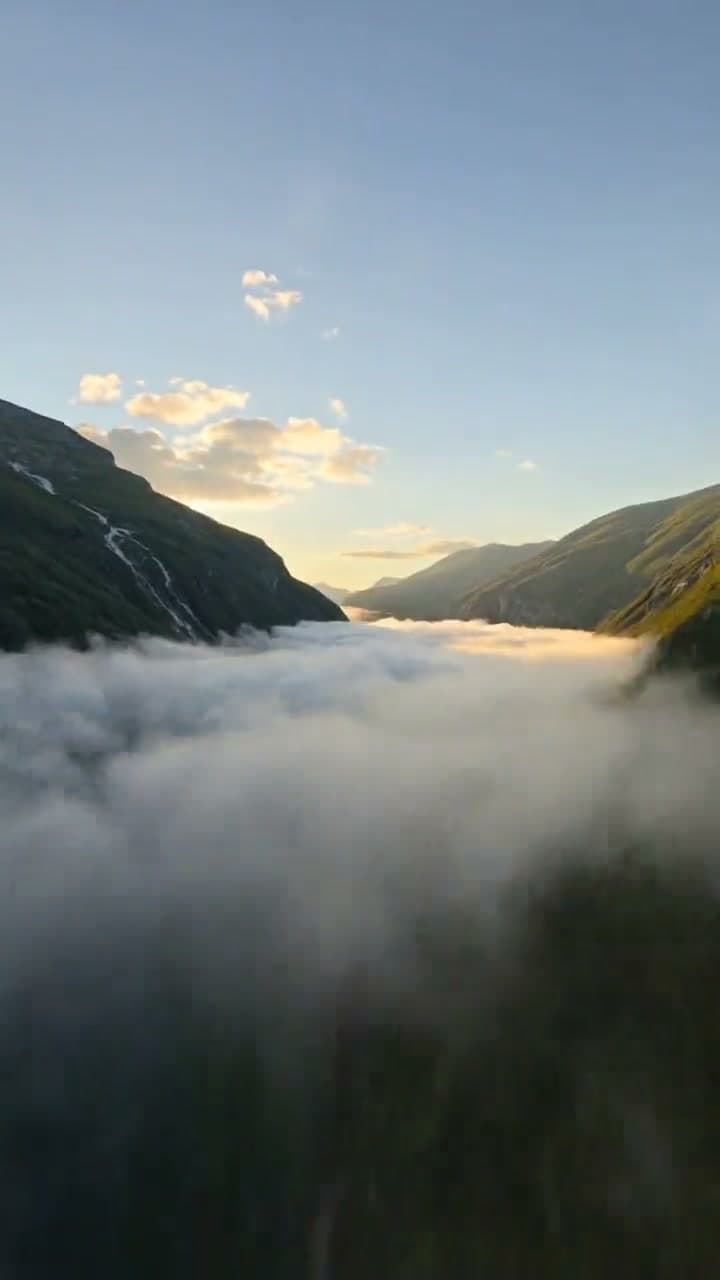
- Ask for a calm lower third. A floor, a table, sky, water, fog. The cover of this page works because the lower half is soft cloud: white text with a thin shadow reads on it.
- Do not prompt the words into the scene. Engines often get letters and digits wrong in the picture. Generate a clean frame and add every word in the edit, where you can check the spelling.
- Keep the camera move gentle under dialogue. A fast whip pan under a caption is hard to read. Save hard moves for shots with no words.
Our camera movement prompts page has the phrasing we use for slow pushes and locked-off shots.
Two kinds of clip, two ways to caption
Voiced clips. The character speaks on screen: a Kling O3 Pro or Veo 3.1 Fast clip with voice on, or any Seedance clip, since Seedance always renders with audio. The transcript comes from the clip's own audio, so the captions follow the character's actual delivery, including the pause they took that you did not write.
Silent clips with narration over them. Many story channels render silent clips and lay one narrator over the cut. Silent seconds are cheaper on Kling O3 Pro (24 credits a second against 30 voiced, at 720p) and on Veo 3.1 Fast (20 against 30). Here you caption the narration track, not the clips. Our narration over silent clips page covers that build.
If a clip has no speech at all, there is nothing to transcribe, and we do not charge for it.
Why our captions stay in sync after a re-cut
The usual caption pain is re-cutting: you trim two seconds from shot three, and every caption after it is now early. In our editor, captions are stored against the clip they came from, in that clip's own seconds, not against the finished timeline. When you trim, retime, hold or crossfade, each caption is moved through the same edit. Press captions again after a re-cut and they land on the new timing.
A few rules are built into how cues are made, because we found them by watching captions feel wrong:
- Two lines at most per cue. Longer sentences are split at sentence breaks first, then at word boundaries.
- Very short fragments are joined to the next line when the gap between them is under about four tenths of a second, so "Yeah." does not flash up on its own.
- A cue aims to stay on screen for at least about seven tenths of a second, but it will not be pushed late to get there. A caption in sync and slightly short beats one that reads well and lags the voice.
- Overlapping caption cues are skipped in the export, so two lines are never painted on top of each other.
What captions cost
Captions bill 8 credits per started minute of audio transcribed. A 30-second reel is one started minute, 8 credits. A 61-second video is two, 16 credits. From the Creator plan up, captions are free, as part of the plan.
To put that next to the render it sits on:
| reel | render | captions | captions as share of render |
|---|---|---|---|
| 30 s, Kling O3 Pro voiced, 720p | 900 | 8 | under 1% |
| 24 s, three Veo 3.1 Fast voiced shots of 8 s | 720 | 8 | about 1% |
| 45 s, three Seedance 2.0 shots of 15 s, 720p | 2,025 | 8 | under 1% |
Export is a separate flat 20 credits per timeline, also free from Creator up. So a captioned, exported 30-second reel on a lower plan is the render plus 28 credits.
The cost that matters is not the captions. It is a re-render because the captions covered the face. That is why framing comes first on this page.
Our caption workflow, start to finish
- Write the shot with a quiet lower third and the subject in the upper two thirds.
- Render, and pick takes on picture and performance, not on captions.
- Cut the timeline: trims, order, holds, music.
- Press captions. Voiced clips are transcribed from their own audio; a narration track is transcribed once for the whole cut.
- Read every cue. Fix names, brand words and anything a transcriber guesses at. A made-up character name is the most common miss.
- Style once: one font, high contrast, a soft shadow, lower middle of the frame.
- Export a 9:16 MP4 with captions burned in. Our 9:16 export guide covers the settings.
If you want to try it on a real clip, render a short voiced scene in the studio, drop it on the timeline and press captions. A 4-second Kling O3 Pro voiced test is 120 credits, and the caption pass on it is one started minute.
FAQ
Should captions on TikTok and Reels be burned in?
For short vertical video, yes. Burned-in captions show on every device and you control the font, timing and spelling. Leave the platform's own auto-captions off so viewers do not see two sets of text.
How much do captions cost on ReelDouble?
ReelDouble charges 8 credits per started minute of transcribed audio, so a 30-second reel costs 8 credits. Captions are free from the Creator plan up, and a clip with no speech is not charged.
How do I stop captions covering the character's face in an AI video?
Plan it in the prompt. Frame the character in the upper two thirds of the vertical frame and ask for a calm lower third such as a floor, sky or fog, then place captions in the lower middle.
Can AI video engines write the caption text into the scene?
Not reliably. Engines often misspell letters and get digits wrong in the picture. Generate a clean frame and add every word as captions in the edit, where you can check each one.
Do captions stay in sync if I re-cut the video?
In ReelDouble, yes. Captions are stored against the clip they came from and moved through every trim, retime and crossfade, so pressing captions again after a re-cut lands them on the new timing.