learnGetting started
How to stitch AI video clips together so the joins do not show
Where to cut between AI clips so the join hides, what to carry from one clip into the next prompt, and what re-rendering one bad join costs on each engine.
by reeldouble · November 2, 2026 · 6 min read
Why AI clips jump when you put them together
Every AI video engine renders one take at a time. Kling O3 Pro stops at 15 seconds a generation, Seedance 2.0 at 15, Veo 3.1 Fast at 8. A story that runs 45 or 60 seconds is always several clips joined end to end, and every join is a place where the viewer can notice that the light changed, the jacket got a new collar, or the camera speed doubled.
The advice on the first page of search is sound but general: plan continuity, keep shots short, use the same reference, match the last frame of one clip to the first of the next, avoid wipes, colour-correct afterwards. We agree with all of it. What it leaves out is the three decisions we make on every join in our own reels: where exactly to cut, what to write into the next prompt, and what it costs when one join fails and has to be redone.
Decision 1: cut where the eye is already moving
A join is invisible when the viewer's attention is busy at the moment it happens. We cut in one of three places, and almost never anywhere else.
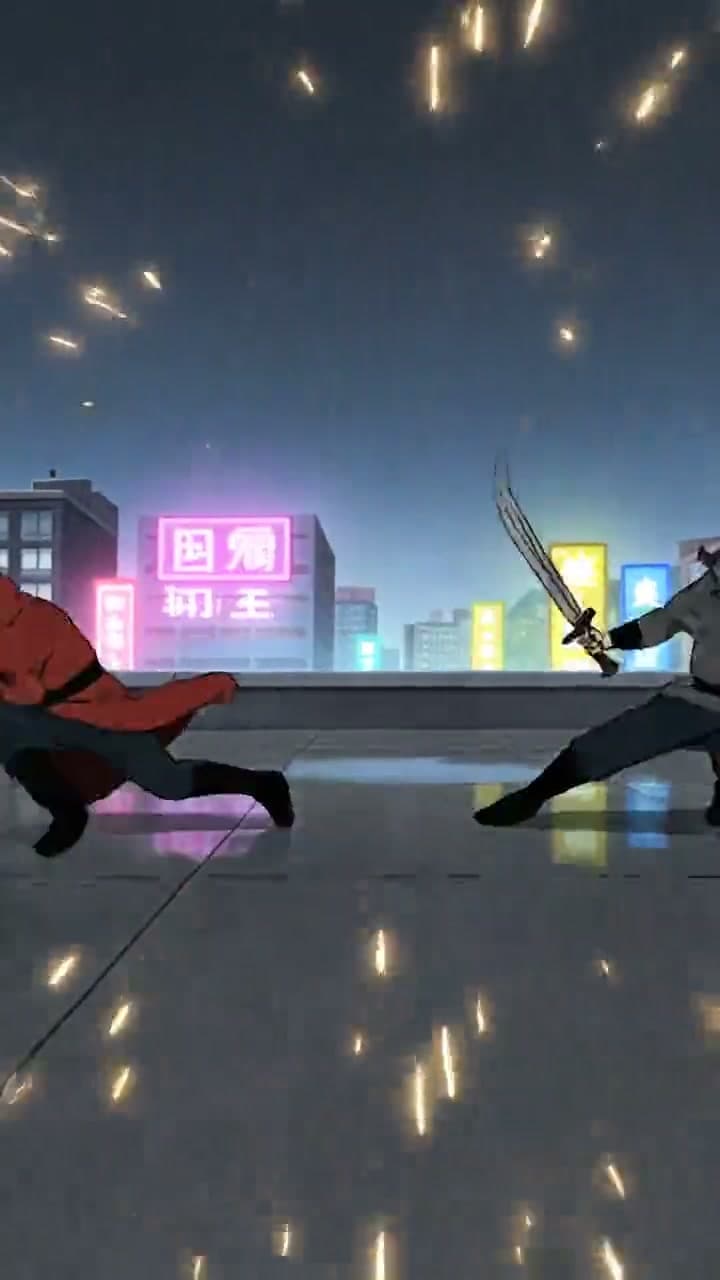
On the action. End clip A as a hand reaches for a door, and start clip B with the door already swinging. The brain fills in the gap, so a small change in lighting or angle reads as a new camera position, not a mistake. This is the cut we use most.
On a camera move. End clip A mid-push towards a face and start clip B already close. Motion blur and a changing frame hide small differences. Our camera movement prompts page lists the moves that hold up best.
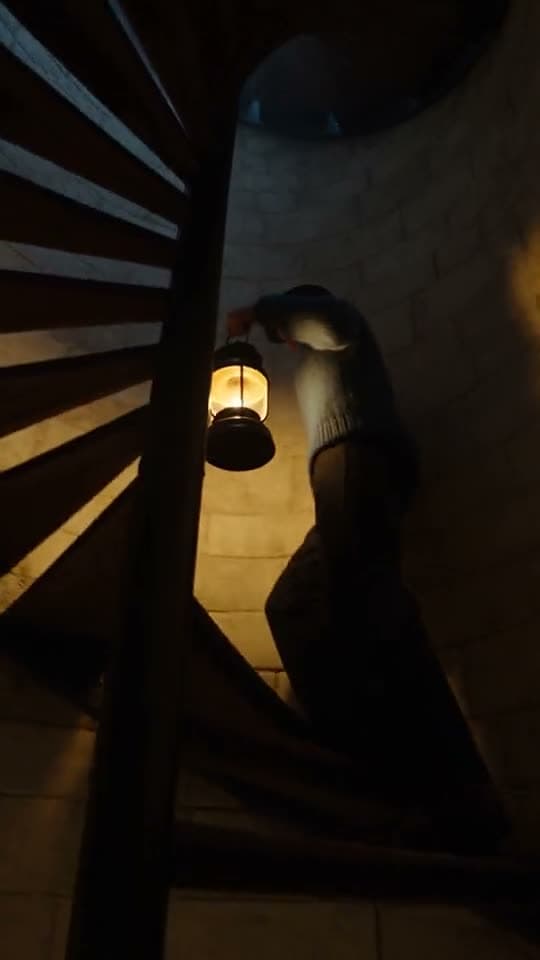
On a line of dialogue. If a character starts a sentence in clip A and finishes it in clip B, the sound carries the viewer across the cut. Keep the audio continuous and nobody looks at the jacket collar.
The cuts that fail are the opposite: a still character, a locked camera, silence. That is where drift shows, because there is nothing else to look at. If a scene needs a long, still moment, render it as one take rather than two halves. Seedance 2.5 renders up to 30 seconds in one take for exactly this.
Decision 2: carry the right things into clip B's prompt
An engine has no memory of the clip before. Whatever you want clip B to keep, you have to give it again. We carry four things, in this order.
- The same character references. Attach the same sheet to both clips, with the same tag: @Element1 on Kling O3 Pro, @Image1 on Seedance, "image 1" on Veo 3.1 Fast. Never swap a reference between two halves of one scene.
- The same descriptor block. The short, fixed description of each character, pasted word for word. Our descriptor block guide shows the format.
- Where clip A ended, in words. Which way the character faces, which hand holds what, where the light comes from, how fast the camera was moving. "She faces left, sword in her right hand, cold light from behind her, camera still pushing in slowly." Engines turn a character round if you do not say which way they face.
- One action, not two. Clip B should do one new thing. Asking a continuation to also change the setting is how a scene breaks at the join.
When an exact match matters, we also use the last frame of clip A as the first frame of clip B. Our first and last frame workflow covers that setup, including when the start frame helps and when it fights the reference.
Decision 3: keep each clip short enough to redo cheaply
Here is the part nobody prices. When a join fails, you do not fix the join; you re-render one of the clips either side of it. The shorter the clip, the cheaper the fix. These are our credit rates for one 6-second retake at 720p, straight from the rate file the studio quotes from:
| engine | 6 s retake, voiced | 6 s retake, silent |
|---|---|---|
| Veo 3.1 Fast | 180 | 120 |
| Kling O3 Pro | 180 | 144 |
| Seedance 2.0 | 270 | 270 |
| Seedance 2.0 Fast | 300 | 300 |
| Seedance 2.5 | 420 | 420 |
Compare that with redoing one long take. A 15-second Seedance 2.5 clip at 720p is 1,050 credits, and if it breaks at second 12 you pay for all 15 again. Split the same 15 seconds into two clips of 7 and 8 at a cut on the action, and a bad second half costs 560.
That is why our default shot length for a story is 6 to 8 seconds. It is long enough for one action, short enough that one failure is a small line on the bill. Our 60-second split guide shows where we put the cuts in a full reel.
One caution on Veo 3.1 Fast: when it renders with character references, the clip is always 8 seconds, so a reference retake on Veo is 240 credits voiced or 160 silent, whatever length you asked for.
The joins we let the studio make
On Kling O3 Pro you can ask for up to 30 seconds in one scene. Kling caps a single generation at 15 seconds, so the studio renders a 30-second Kling scene as two 15-second shots with the same characters in both and joins them for you. You still get one clip back. The join sits at the 15-second mark, so if your scene has a natural action at that point, write it there.
Putting the reel together
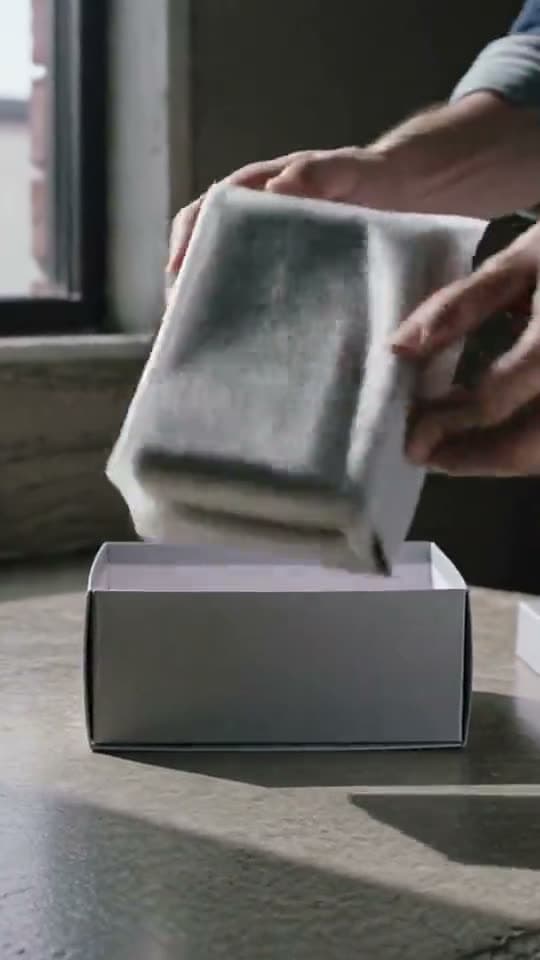
Once every clip is rendered, we put them in order in the editor, trim the dead frames at the head and tail of each clip, and export one 9:16 MP4. Trimming matters more than people expect: many generations open with a fraction of a second where the subject settles, and cutting those frames removes the stutter that makes a join visible.
An export out of the editor is a flat 20 credits, whatever the timeline holds, and free from the Creator plan up. Captions, if you want them, are 8 credits per started minute, also free from Creator up. Our 9:16 export guide has the settings.
A worked example: a 30-second scene in four clips
| clip | engine | length | credits |
|---|---|---|---|
| 1, wide establishing, silent | Kling O3 Pro | 8 s | 192 |
| 2, push in, line starts | Kling O3 Pro | 8 s | 240 |
| 3, line finishes, close-up | Kling O3 Pro | 6 s | 180 |
| 4, reaction, silent | Kling O3 Pro | 8 s | 192 |
| one retake of clip 3 | Kling O3 Pro | 6 s | 180 |
| export | 20 | ||
| total | 30 s | 1,004 |
Every join in that scene sits on a camera move or inside a sentence. If you want to see the numbers before you commit, build the scene in the studio: the price of each clip shows under its render button, and changing a length changes the price on screen before anything is billed.
FAQ
How do I join AI video clips without a visible jump?
Cut on an action, a camera move or a spoken line, never on a still moment. Give the next clip the same character references and descriptor, and say in words where the last clip ended. In ReelDouble you then trim and export the clips as one 9:16 MP4.
Should I use the last frame of one AI clip as the first frame of the next?
It helps when the match must be exact, such as a continuous camera move. Keep the character references attached as well, because a start frame alone lets the face drift over several clips.
How long should each AI clip be for a story video?
We use 6 to 8 seconds per clip. That holds one action and keeps a retake cheap: a 6-second retake on Kling O3 Pro at 720p is 180 credits voiced or 144 silent on ReelDouble.
Can I make a 30-second AI clip in one go?
On ReelDouble, Seedance 2.5 renders up to 30 seconds in one take. Kling O3 Pro also accepts 30 seconds by rendering two 15-second shots with the same characters and joining them for you.
What does it cost to export stitched clips in ReelDouble?
An export out of the ReelDouble editor is a flat 20 credits whatever the timeline holds, and free from the Creator plan up.